Getting Started
The UI, viewport, and your first 5 minutes with GMT.
Launch the app
GMT runs entirely in your browser — there's nothing to install. Head to app.gmt-fractals.com. On first load a Mandelbulb appears in a few seconds; subsequent visits are near-instant (assets are cached for offline use).
The layout
There are four regions you'll use all the time:
- Top Bar — logo, render tools, the one-click Snapshot button (saves a PNG), the File menu (New Scene / Load / Save / Browse Gallery / Copy Share Link), the Camera menu (camera slots + Camera Manager), the Light Studio (those glowing orbs), the System menu, and Help (?).
- Viewport — the 3D fractal itself, fills the center.
- Right Dock — the main control deck with tabs: Formula, Graph, Scene, Shader, Gradient, Quality.
- Timeline — hidden by default. Press T to show it.
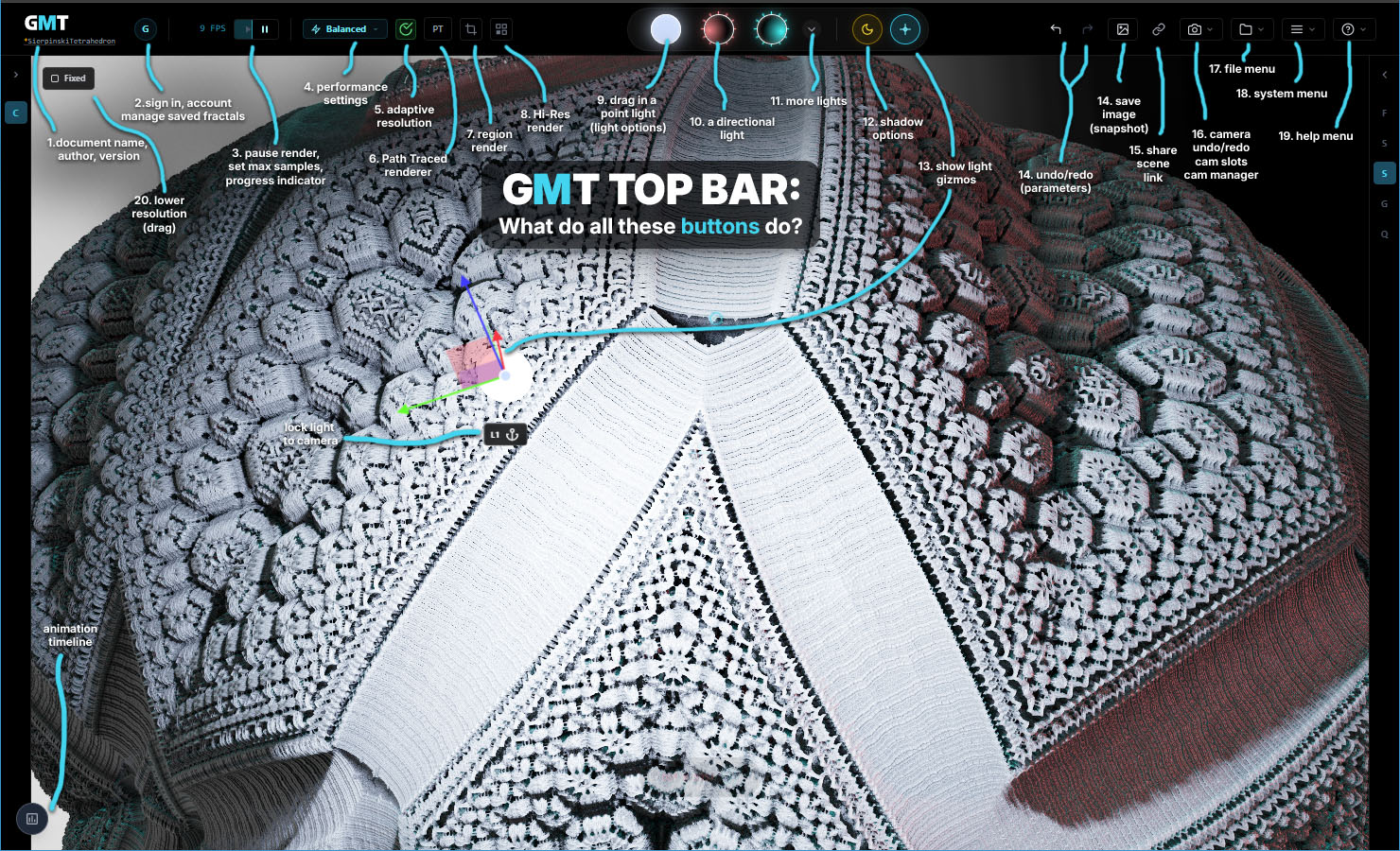
Move the camera (quick version)
The default camera mode is Orbit — you rotate around a fixed point in space. Press Tab to switch to Fly mode, where you steer through the fractal like a spaceship.
- Orbit mode: left-drag to rotate, right-drag to pan, scroll to zoom.
- Fly mode: W A S D to move, Space/C to ascend/descend, drag the mouse to steer, scroll to adjust speed, Shift for a 4× boost.
More on cameras in the next tutorial.
Change the formula
Open the Formula tab in the right dock. The dropdown at the top opens a gallery of thumbnails — every built-in fractal with a preview image. Click any thumbnail to load it.
Each formula exposes up to six parameters labelled A through F. Drag them and watch the fractal reshape in real time. This is the fastest way to explore the space of shapes.
Take your first snapshot
Click the one-click Snapshot button in the top bar. GMT saves a PNG of the current view to your Downloads folder.
Looking for inspiration? You can browse the community gallery any time from File → Browse Online Gallery.
Keyboard quick reference
- Tab — toggle Orbit / Fly camera
- T — show/hide the Timeline
- Ctrl+Z / Ctrl+Y — undo / redo parameter changes
- Ctrl+Shift+Z / Y — undo / redo camera moves (separate history)
- 1–9 — jump to camera slot 1–9
- Ctrl+1–9 — save current view to camera slot 1–9
- H — toggle in-app hints overlay
- ` (backtick) — toggle Advanced Mode for extra controls
- B — broadcast mode (clean feed, hides all UI). Esc to exit.
Next up: deeper camera control — slots, precision, and handling the infinite scale.